

This guide shows you how to put an artwork in your shop at a fixed price, and how to sell an artwork in an auction.
Before you start
- You need an open shop. See How to open your Artista shop.
- Time: about 10 minutes for each artwork.
- Have ready: a good photo of the artwork (JPG or PNG), its title, its price and a few lines about it.
Add an artwork at a fixed price
Step 1: Open Products
In your Shop Dashboard, click Products in the menu on the left. Then click Add new product.
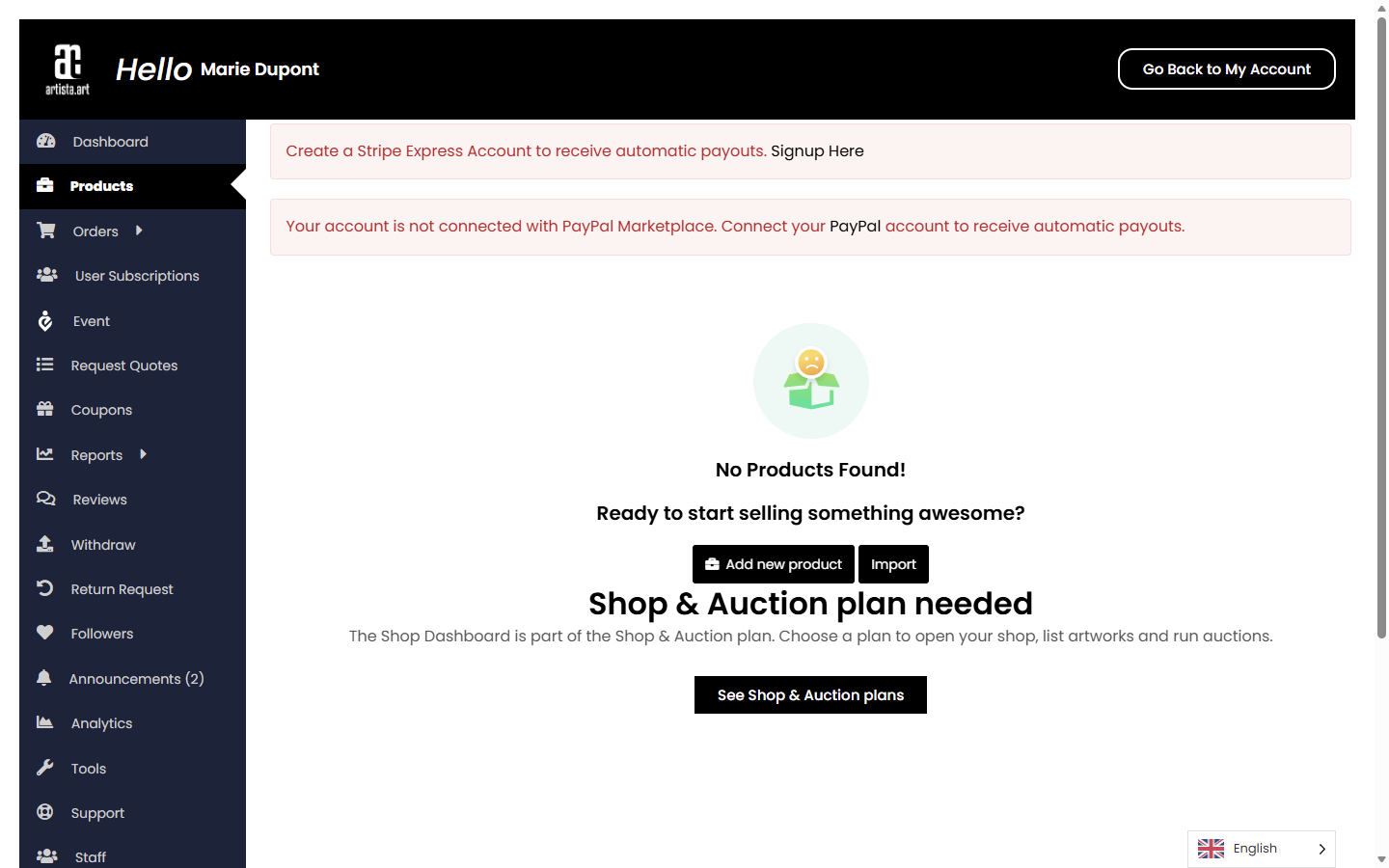
Step 2: Fill in the details
Fill in the boxes marked required: the title of the artwork, the price in CHF, the category and the description. You can leave the other sections as they are.

For the category, click the box and choose the one that fits your artwork, for example Painter.

Step 3: Add your photo
On the right, under Feature image, click Upload. Choose your photo, then click Use this media.


Step 4: Check the status, then save
Important: on the right, Status is set to Publish. That means your artwork goes on sale as soon as you save. If you want to check it first, change it to Draft. When everything is right, click Save Changes at the top.

Sell an artwork in an auction
Step 1: Open Auction
In your Shop Dashboard, click Auction in the menu on the left. Then click Add New Auction Product.

Step 2: Describe the artwork
Type the name of the artwork and a short description. Choose a category: click the small pencil next to Category. Add your photo the same way as for a fixed-price artwork.

Step 3: Set the prices and dates
- Start price: the first bid. The box shows 9.99 at first, so change it.
- Bid increment: how much each new bid must add, for example CHF 10.
- Reserved price: the lowest price you accept. If bids stay below it, the artwork is not sold. You can leave it empty.
- Buy it now price: a price at which someone can buy at once and end the auction. You can leave it empty.
- Auction start and end date: when bidding opens and closes.

Step 4: Save
Choose the Product Status: Draft to check it later, or Publish to put it online. Then click Save Product.

You should now see
Your artwork in the list under Products or Auction. Artworks set to Publish appear in your shop once your shop is approved.
If something goes wrong
- My photo does not upload. Use a JPG or PNG photo. If it is very large, make it smaller first and try again.
- I cannot find the right category. Choose the closest one and contact Artista.
- My artwork went online too early. Open it, change Status to Draft and save again.